

# Keyboard Actuation Point for Typing Speed: What to Change First
Keyboard actuation point is the travel distance where a key press registers. For typing speed, a shorter actuation point can reduce time per keystroke, but only when accuracy remains stable. Most typists get the best results by testing one controlled step, such as moving from about 2.0mm to about 1.6mm, then checking median WPM and median accuracy over several days.
If errors rise faster than speed, the setting is too aggressive for your current technique. The best actuation point is the one you can sustain across real work, not only short benchmark runs.
# What actuation point changes during typing
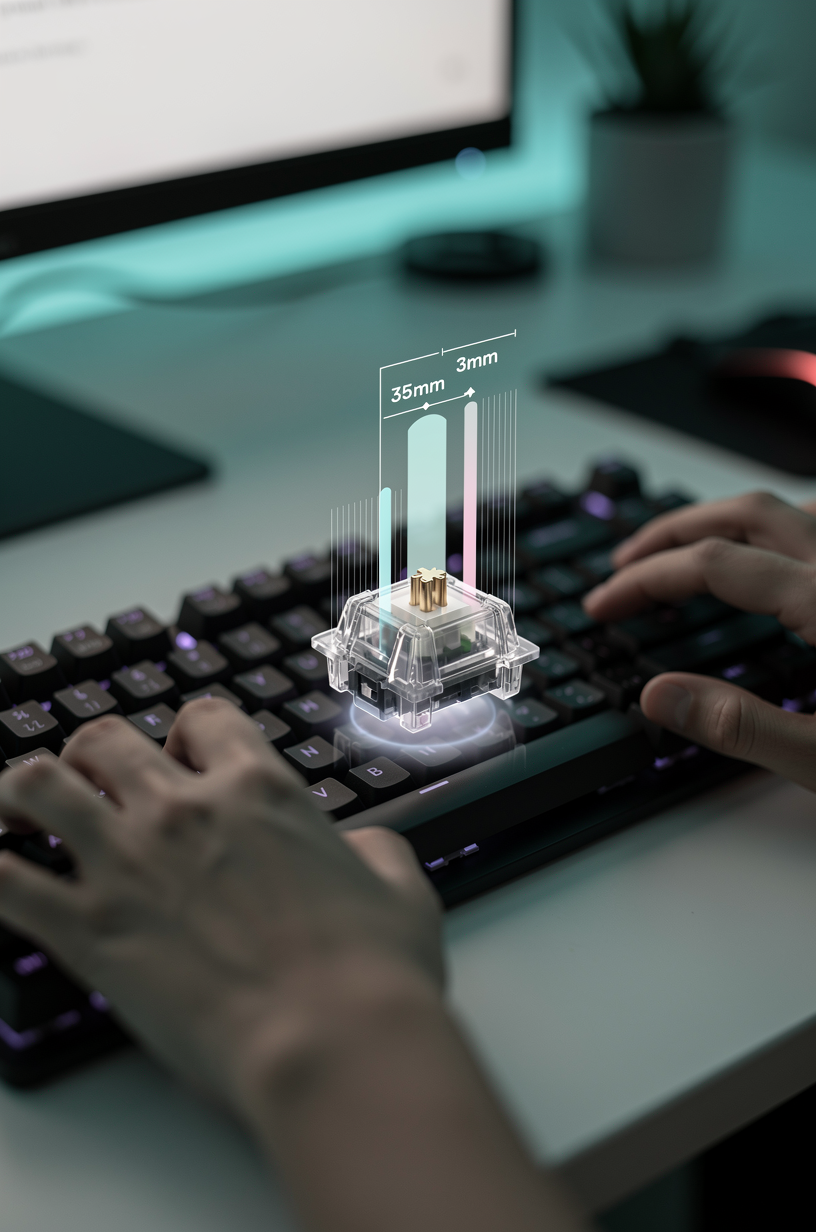
Actuation point changes when a key press is recognized, not how far the key can physically move to bottom out. On many switches, total travel is around 3.5mm to 4.0mm, while actuation can sit closer to 1.2mm, 1.8mm, or 2.2mm depending on design or firmware settings.
This affects three practical outcomes:
- Keystroke timing. Shorter actuation can register input earlier in each press cycle.
- Error tolerance. Very short actuation can trigger accidental presses when fingers rest heavily.
- Fatigue pattern. Some users type lighter and faster with short actuation, while others tense up and overcorrect.
The setting matters most for typists who already keep high accuracy and consistent finger placement. If home row discipline is still unstable, actuation tuning usually gives noisy data.
For background on keyboard input flow and HID handling:
- https://learn.microsoft.com/en-us/windows/win32/inputdev/about-keyboard-input (opens new window)
- https://www.usb.org/hid (opens new window)
- https://www.rtings.com/keyboard/tests/latency (opens new window)
# Does a shorter actuation point always improve WPM
Short answer: no. It can improve WPM for some users and reduce WPM for others.
A shorter actuation point helps when your finger path is controlled and your key presses are intentional. It hurts when your hands drift, your fingers hover too low, or you rely on deep bottom out for rhythm.
Typical patterns seen in practical testing:
- High accuracy typists often gain consistency first, then small WPM gains.
- Mid accuracy typists often see unstable scores at first, then either adapt or revert.
- Heavy handed typists often spike errors on very short settings.
That is why actuation tuning should be treated as a measurement project, not a one run tweak.
# Decision table: choose a starting actuation point
Use this table as a first pass, then validate with real test data.
| Current profile | Baseline accuracy | Current actuation | Suggested test target | Expected result pattern |
|---|---|---|---|---|
| New to mechanical keyboards | 92 to 96% | ~2.0mm to 2.2mm | Keep current for one week | Stability improves more than speed |
| Intermediate touch typist | 96 to 98% | ~2.0mm | Test ~1.8mm | Small speed gain if error rate stays flat |
| Advanced speed focused typist | 98 to 99% | ~1.8mm | Test ~1.4mm to 1.6mm | Better burst speed and rhythm when controlled |
| Heavy key press habit | 95 to 98% | ~2.0mm | Test ~1.8mm only | Lower error risk than going directly to ~1.2mm |
| Typist with fatigue in long sessions | 96 to 99% | ~2.0mm | Test ~1.6mm with posture check | Mixed, depends on force control and wrist angle |
The best starting point for most people is one small step shorter than current settings.

# Common mistakes when tuning actuation point
# Changing too many variables at once
If you change switch type, keycap profile, and actuation point together, you cannot isolate cause and effect. Keep one keyboard, one switch set, one test routine.
# Chasing peak score screenshots
One exceptional run can hide a broader accuracy drop. Use medians and variance. Ten average runs beat one lucky run for decision making.
# Ignoring corrected errors
Raw WPM alone can look better while corrected errors climb. If your platform reports corrected errors, track them. Extra corrections consume time and mental load.
# Testing only in fresh, short sessions
Short sessions favor novelty and concentration spikes. Include at least one longer block after normal work hours to see how settings behave under fatigue.
# Using an aggressive short setting immediately
Jumping directly to very short actuation can create a week of noise. A staged approach gives cleaner adaptation and better confidence.
# A seven day actuation test protocol
This protocol gives enough data for a clear keep or revert decision.
# Day 0: lock baseline
- Keep your current actuation point.
- Run 8 to 10 tests with the same duration.
- Log WPM, accuracy, corrected errors, and one sentence on comfort.
# Days 1 to 3: test setting A
- Move one step shorter, for example from ~2.0mm to ~1.8mm.
- Run 4 to 6 tests per day at similar times.
- Keep keyboard angle, desk height, and browser constant.
Goal: confirm whether median WPM rises without accuracy drop.
# Days 4 to 6: test setting B
- Keep setting A if stable, then test one step shorter, for example ~1.6mm.
- Repeat identical run count and schedule.
- Record the same fields.
Goal: identify whether extra speed offsets added errors.
# Day 7: endurance check
- Do one 20 minute normal writing block.
- Follow with two timed typing tests.
- Compare error recovery quality and hand tension.
Decision rule:
- Keep the shortest setting that maintains your accuracy floor and does not raise fatigue.
# How actuation point interacts with switch type
Actuation distance is only one part of key feel. Switch force curve and tactile event position matter too.
- Linear switches: often feel fastest at shorter actuation, but accidental presses can rise if finger control is loose.
- Tactile switches: can be easier to control near medium actuation because bump feedback supports timing.
- Clicky switches: audio and tactile cues help cadence, but sound and reset feel can shift your rhythm.
If you are still choosing a switch family, read:
- Keyboard Switch Types: Sound and Feel Comparison
- Best Keycap Profile for Typing Speed: A Practical Guide
- Keyboard Polling Rate for Typing Speed: Does 1000Hz Help?
This sequence keeps hardware decisions coherent instead of random.
# Accuracy guardrails for short actuation settings
Use simple guardrails so you do not drift into high speed, low quality typing.
Set these thresholds before testing:
- Accuracy floor: pick a floor such as 97%.
- Corrected error ceiling: define max acceptable correction count.
- Consistency threshold: require at least three sessions with similar medians.
If two of the three fail, revert one step longer. Revert is a data decision, not a failure.
For technique reinforcement while testing:
- Typing Finger Placement: Master the Foundation
- Typing Muscle Memory: Train Your Fingers
- Typing Wrist Angles: Optimizing Comfort and Speed
# Software and firmware notes that affect results
Some boards expose actuation settings through firmware utilities, while others lock distance to switch design. Before testing, verify what your keyboard actually supports.
Checklist for reliable setup:
- Confirm profile persistence after reboot.
- Disable conflicting background keyboard tools.
- Use the same USB port across all sessions.
- Keep OS power settings consistent.
References:
- https://docs.qmk.fm (opens new window)
- https://www.keyboard.university (opens new window)
- https://www.kernel.org/doc/html/latest/hid/index.html (opens new window)
These steps remove false variation that can look like actuation effects.
# Weekly checklist before you keep a new setting
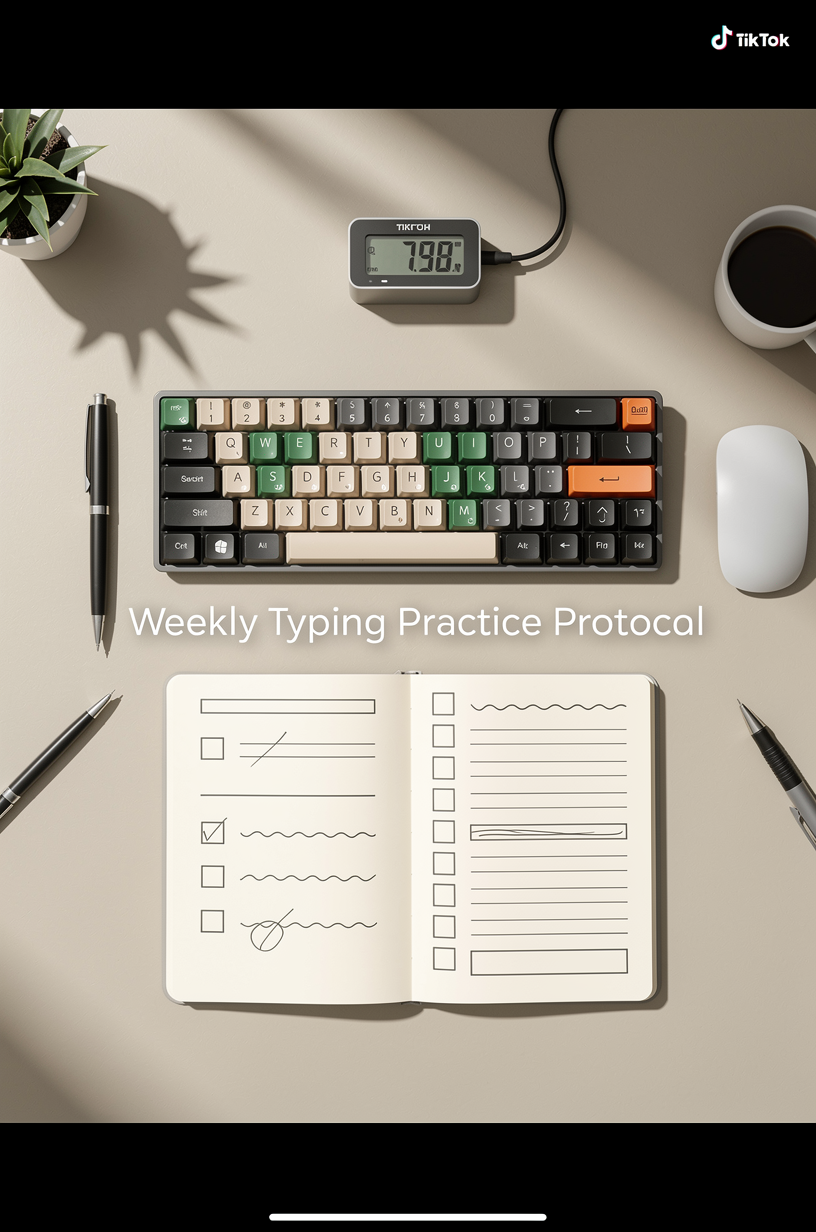
- [ ] I tested at least two settings with equal session counts.
- [ ] I used median WPM and median accuracy for comparisons.
- [ ] I logged corrected errors for each run.
- [ ] I included at least one fatigue session.
- [ ] I kept keyboard angle and desk setup fixed.
- [ ] I linked the final choice to real work comfort, not just short test peaks.
If you can check five items, your decision quality is usually high enough to keep the setting with confidence.
# What to change first if your scores are stuck
If WPM is flat and errors are rising, change sequence matters.
- Stabilize posture and hand placement.
- Reduce correction loops by slowing slightly for two sessions.
- Test one shorter actuation step.
- Keep only settings that improve median quality metrics.
This order gives reliable progress with lower frustration.
If your goal is role specific performance, compare outcomes against:
- Typing Speed for Job Applications: Real WPM Targets by Role
- Typing Speed Across Different Keyboard Sizes
- Typing Speed Comparison: Laptop vs Mechanical
# Conclusion
Keyboard actuation point can improve typing speed when tuned with discipline. The practical approach is a controlled step down in actuation distance, consistent measurement, and strict accuracy guardrails. Most typists should optimize for stable medians over one week, then keep the shortest setting that preserves control and comfort.
That gives a durable speed gain that survives real work sessions, not only short benchmark runs.